



Couple of years back, we were using ColdFusion Builder as our primary development IDE. We used only CFB 1 & 2, haven't tried CFB 3 so far. But CFB 1 & 2 were exceptionally slow and bloated.
An year back, We moved from ColdFusionBuilder to SublimeText, We knew it is not full fledged IDE, it is just an text code editor. After using it for a couple of weeks, we never turned back to CFB. It is freaking light weight. Please check CF Builder vs SublimeText 2 resources comparison by Chris Tierney
| IDE | RAM | Disk |
|---|---|---|
| CF Builder 2.0.1 | 185,420 K | 525 MB |
| Sublime Text 2.0.1 | 47,232 K | 20 MB + 67.5MB App Data |
| Sublime Text 3.2.1 | 56,700 K | 34.4 MB + 69.5MB App Data |
Below are the top few reasons, why you should try SublimeText,
- Package control
- Goto Anything
- Multiple cursor ( Ctrl/Cmd + d for select subsequent matches, Alt+f3 / Cmd+Ctrl+g selects all instances)
- Column selection ( shift-right click and drag )
But we missed offline documentation in the ColdFusion builder in our new code editor. It is hard to remember all cftag attributes & function arguments list. Ctrl+F1 is a handy short cut to see the dynamic help in ColdFusion builder. We started using Dominic Watson's Cf Quick Docs Launcher plugin to achieve this. It is very simple sublimetext plugin which will select the word at the cursor & do search in CF Quick Docs. But CF Quick Docs is not offline & it is not actively updated.
Zeal offline Documentation

We have the another one option for the Zeal offline documentation with Sublime text for the programming languages. Zeal is a good offline API documentation browser. We can download the documentation for the languages what we want to use it in Zeal.
To download the needed documentation, click the menu Tools -> docsets in zeal. The DocSets menu, the installed documentation will be available under the Installed tab and get the needed documentation from the Available tab.
After downloading the documentation that will available in the search location. In default, the search option will return the results from all the language documentation. So that we should mention it as in the search text like ColdFusion: structKeyExists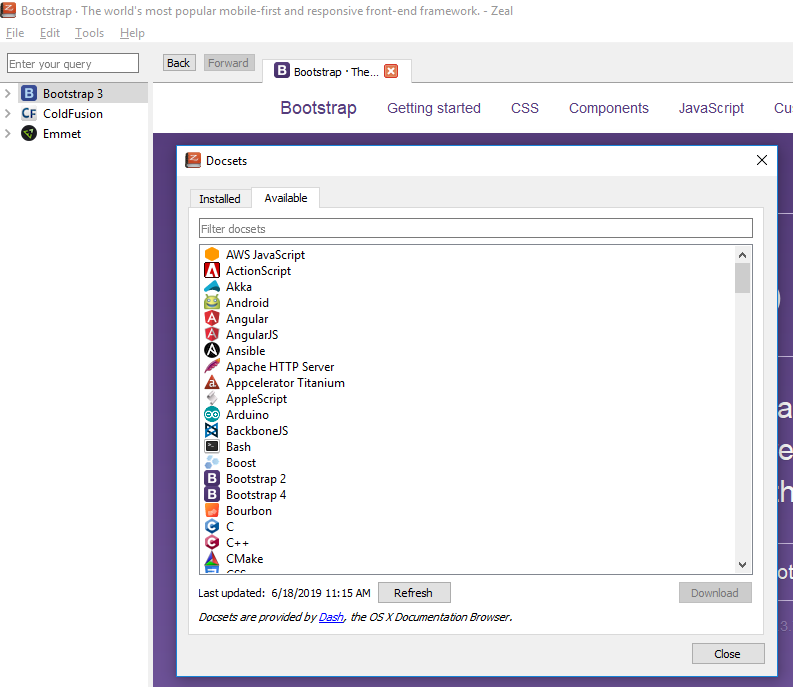
Download & Install the Zeal application from GitHub link. The Zeal Application is available for both 32-bit and 64-bit OS. We can get both types of installation files from the above link.
If we have the downloaded docset zip files, We can unzip the file and put it into the zeal docsets location directly. The sample Zeal docset location is C:\Users\SQORI-018\AppData\Local\Zeal\Zeal\docsets.
To Integrate the Zeal with Sublime Text, there is available Zeal Sublime Text Package. So that we can install the package using the Command Palette. The Installed package will be displayed on the menu Preferences -> Package Settings -> Zeal We can use the Zeal Settings-Default option to update the Zeal executable path in the Zeal command in Sublime Text 2\Packages\User\Zeal.sublime-settings file.
{
  /**
   *  Zeal executable path.
   *  For Linux: /usr/bin/zeal
   *  For Windows: c:\\Program Files\\Zeal\\zeal.exe
   */
  "zeal_command": "C:/Program Files/zeal/zeal.exe",

  /**
   *  Sort maaping results.
   */
  "mapping_sort" : true,

  /**
   * Language mapping.
   */
  "language_mapping": {
    "HTML": {"lang": "html", "zeal_lang": "html"},
    "JavaScript": {"lang": "javascript", "zeal_lang": "javascript"},
    "CSS": {"lang": "css", "zeal_lang": "css"},
    "PHP": {"lang": "php", "zeal_lang": "php"},
    "Python": {"lang": "python", "zeal_lang": "python"},
    "cfml": {"lang": "cfml", "zeal_lang": "cf"},
    "cfscript": {"lang": "cfscript", "zeal_lang": "cf"}
  }
}
We can link with the zeal offline documentation by the Key Bindings - Default option. Use the Key Bindings to set the shortcut keys to open the Zeal offline documentation.
[
    { "keys": ["f1"], "command": "zeal_search_selection" },
    { "keys": ["shift+f1"], "command": "zeal_search" }
]
The above code has given two options,
For F1key, Select something in the sublime text and press the F1 key to view the details. For SHIFT + F1, Open the Zeal search box to type the search text. Both the Dash and Zeal share the same document sets.
Package Control
Package control is an essential option in sublime text. It will use to manage all the packages. Package Control used to Install, Update, Remove the packages in sublime text. We can install or modify any packages using the Package control. To use the package control in our sublime text we should Enable/Install the Package Control for the sublime text. We can install the Package control by the sublime text console and manually install.
Simple Install Package Control from Sublime Text Console:
To open the console in Sublime Text, click the View -> Show console in menu list or press the CTRL+`. Then execute the following Python code into the sublime text console.
import urllib2,os,hashlib;

h = '6f4c264a24d933ce70df5dedcf1dcaee' + 'ebe013ee18cced0ef93d5f746d80ef60';
pf = 'Package Control.sublime-package';
ipp = sublime.installed_packages_path();

os.makedirs( ipp ) if not os.path.exists(ipp) else None;
urllib2.install_opener( urllib2.build_opener( urllib2.ProxyHandler()));

by = urllib2.urlopen( 'http://packagecontrol.io/' + pf.replace(' ', '%20')).read();
dh = hashlib.sha256(by).hexdigest();

open( os.path.join( ipp, pf), 'wb' ).write(by) if dh == h else None;
print('Error validating download (got %s instead of %s), please try manual install' % (dh, h)
      if dh != h else 'Please restart Sublime Text to finish installation')
The above code will create the Installed Packages folder and download into the sublime text packages.
Manually Install the Package Control:
We can install the package control manually. To install the package control, you should do the following steps.
- Click the
PreferencesMenu and Select theBrowse Packages...in the list. - Browse and select a folder and then into the
Installed Packagesfolder - Download the Package Control.sublime-package and put the copy into the
Installed Packagesfolder - Then
Restartthe sublime text
Usage of Control Package:
We can operate the Control Package by the Command Palette. Press the CTRL + SHIFT + P keys for the Windows, Linux OS and for the Mac OS press the CMD + SHIFT + P to open the Command Palette. All the commands list out in the commands palette. We can use the control package for the following things:
- Install Package
- Add Repository
- Remove Package
- Add Channel
- Create Package File
- Create Binary Package File
- Disable Package
- Discover Packages
- Enable Package
- Upgrade/Overwrite All Packages
- Upgrade Package
- Install Local Dependency
- Package Control Settings – Default
- Package Control Settings – User
Goto Anything
"Goto anything" option is one of the good features in Sublime Text. We can switch over the project files very easily and quickly. We can very fast to view the files and also switch to the other project files. I mean One repo to another repo we can navigate quickly.
We've some shortcut keys to do the "GoTo Anything",
| Keys | Actions |
|---|---|
CTRL + P | To Open the "Goto Anything" |
Enter | Pin Current item and close Goto Anything |
-> | Pin current item |
Esc | To Close the "Goto Anything" |
Operators for "Goto Anything":
When we're using the "Goto Anything" option, We've typed the filename as the input to search and the current project files will be searched and list out the matched filenames. We can select the file which one we want to view. GoTo Anything accepts several operators. for illustrate, I've searched with the following
dsp_users.cfm : 74
The given above example, the sublime going to search the file name "dsp_users.cfm" and then go to line 74 in that file.
The Supported Operators:
| Keys | Actions |
|---|---|
@symbol | Its search the file which is mentioned for the symbol. The symbols usually include class and function names.shortcut key for symbol ( @ = CTRL+R ) |
#term | It will perform a fuzzy search of the "Search term" and highlight all the matches within the file. shortcut key for term ( # = CTRL+; ) |
:line_number | It's used to go the specified line. for example, if we specify like: 50 means the cursor moves to 50 line of the file. If the file not having the mentioned number of lines count, then it will go to end of the file. shortcut key for the line number ( : = CTRL + G ) |
Key Bindings:
Key Bindings is the concept of mapping the keyboard keys. We can set pressing the keys as a command in Sublime Text. So that we can able to create a lot of shortcut keys to handle the sublime text as more efficiently and effectively.
The Key Bindings are created in a JSON format and saved the file with the .sublime-keymap extension. We can have two kinds of the package in Key Bindings, one is default package and another one is User package. The default Sublime Text key binding data will be available in the default package. That is located in windows - Packages/Default/Default (Windows).sublime-keymap) and we can override the key bindings and creating new bindings with the user package keymap file. For the user package location, Packages/User/Default (Windows).sublime-keymap.
We can set the key bindings for the both Windows, Mac OS, and Linux separately.
For Illustrating,
[
    {
        "keys": ["ctrl+shift+t"],
        "command": "new_window"
    },
    {
        "keys": ["ctrl+o"],
        "command": "prompt_open_file"
    }
]
Also, We can create shortcuts for the ColdFusion tags via the user package keymap file.
Using "insert_snippet" as command to create a writeDump() in script and cfdump tag by pressing CTRL+T D keys the following,
// CFScript Dump
{
	"keys": ["ctrl+t", "d"], "command": "insert_snippet",
	"args": { "contents": "writeDump(${0:$SELECTION});" },
	"context":
	[
		{"key": "selector", "operator": "equal", "operand": "source.cfscript"}
	]
},
// CF tag - <cfdump>
{
	"keys": ["ctrl+t", "d"], "command": "insert_snippet",
	"args": { "contents": "" },
	"context":
	[
		{"key": "selector", "operator": "equal", "operand": "text.html.cfm"},
		{"key": "selector", "operator": "not_equal", "operand": "source.cfscript.embedded.cfml"}
	]
}
So that, we can create own key bindings by the above-mentioned JSON code. The user key binding package location AppData\Roaming\Sublime Text 2\Packages\User\Default (Windows).sublime-keymap. Both default and users keymap packages will be available in the AppData directory.